Lumi Business Accounting Module — Automated Bookkeeping & Financial Reports for Nigerian SMEs
What’s New
Lumi Business now includes a full Accounting Module, giving merchants a real-time, automated view of their business finances directly alongside their point-of-sale activity. Every sale, return, payment, and expense recorded in Lumi is automatically translated into a balanced double-entry journal — with no manual re-entry required.
The module brings together four interconnected capabilities: a customisable Chart of Accounts, configurable Account Settings, automated Journal Entries, a searchable General Ledger, and four standard financial reports including Profit or Loss, Balance Sheet, Trial Balance, and Cash Flow Statement. Ageing Reports (Payables & Receivables) will be made available during the pilot.
What’s Included
Below is each capability now available on Lumi Business.
1. Chart of Accounts
The Chart of Accounts (CoA) is the financial skeleton of the Accounting Module. It is a structured list of every account category the business uses to classify money — Assets, Liabilities, Equity, Revenue, and Expenses.
Why this matters Lumi automatically seeds a full set of default accounts when the accounting module is first enabled, so businesses are not starting from a blank slate. Accounts can be customised, renamed, or added by the business owner or their accountant to match the way their books are structured.
Default accounts created automatically
Sales Revenue, Sales Returns, Sales Discounts
Cost of Goods Sold, Inventory (Asset), Inventory Shrinkage
Accounts Receivable, Accounts Payable
Default Cash & Bank Account, Card Account, Cash Account
Customer Wallet Account (Liability), Customer Loyalty & Gift Account (Liability)
VAT Output (Sales), Owner’s Capital, Owner’s Drawing, Retained Earnings
Opening Balance Account (Equity) — used for entering opening balances at setup
What you can do
View all accounts with account code, name, type, sub-type, bank name, and active status
Filter by account type (Assets, Liabilities, Equity, Revenue, Expenses)
Search by account name, number, code, or bank name
Add new custom accounts with account type, name, and optional notes
Update any account’s name or notes
Export the full Chart of Accounts
View an individual account detail page with full transaction history and running balance
2. Account Settings
Account Settings is where the business maps each type of financial event to the correct account in the Chart of Accounts. This is the configuration layer that ensures every automated journal posts to the right place.
Why this matters Lumi handles the debit/credit logic internally — merchants never need to decide which side of a journal to post. Account Settings simply asks: “when a sale happens, which account should the revenue go to?” The rest is automatic.
Configurable mappings
Settings are grouped across five tabs: Sales, Expenses, Inventory, Taxes, and Equity. Examples of configurable mappings include:
3. Ledger Account Selection at Checkout
Cashiers can now select a specific ledger account at the point of checkout when the payment method is Card or Transfer. This ensures that each payment posts directly to the correct bank account in the books — particularly useful for merchants with more than one bank account or multiple stores.
Why this matters Previously, all payments posted to a single default account regardless of how or where they were received. With this update, each card or transfer payment can be directed to the exact account it was settled into, keeping the General Ledger accurate without any manual journal correction.
How it works
Go to Store Settings and enable ledger account selection for the store.
At checkout, select Card or Transfer as the payment method.
An Accounting dropdown will appear. Select the relevant bank account from the list.
Only bank-type Chart of Account entries will appear in the dropdown.
Complete the transaction as normal. The payment will post to the selected account in the General Ledger.
4. Journal Entries
Every financial event in Lumi now generates a Journal Entry (JE) — a balanced, double-entry record of the transaction. The system posts these automatically; no manual bookkeeping is needed for standard POS activity.
Why this matters The journal is the foundation of accurate financial reporting. Because Lumi posts entries automatically and in real time, reports are always up to date. Manual entry is only required for corrections, accruals, and opening balances — advanced use cases that are gated to higher subscription tiers.
How automated journal entries work
A single card sale of ₦10,750 generates two automated entries:
Journal entry management
Filter by status: All Entries, Posted, Draft, Review, Voided, Cancelled
Filter by store and date range
Click any reference (e.g. JE0011) to view the full entry detail
Export journal entries
Entries posted by the system are marked ‘SYSTEM’ under Initiated By
5. General Ledger
The General Ledger (GL) provides a complete transaction history for any account in the Chart of Accounts, with opening balance, total debit, total credit, and a running balance shown for each account over a selected period.
Why this matters The GL is the master record an accountant uses to verify the accuracy of the books. Rather than hunting through transaction logs, they can select any account and immediately see every movement, the source journal entry, and the running balance.
What you can do
Select any account from the Chart of Accounts
Filter by date range (e.g. 1st May to 31st May 2026)
Filter by store (all stores or a specific location)
View opening balance, total debit, total credit, and current running balance in the summary header
See each transaction with: Trx Ref, Journal Ref, Description, Opening Amount, Debit Amount, Credit Amount, Running Balance, Trx Date, and Store
Click the Journal Ref (e.g. JE0002) to navigate directly to the source journal entry
6. Accounting Reports
Four standard financial reports are now available directly in Lumi, all generated automatically from the data the system posts in real time. No manual data export or re-entry is needed.
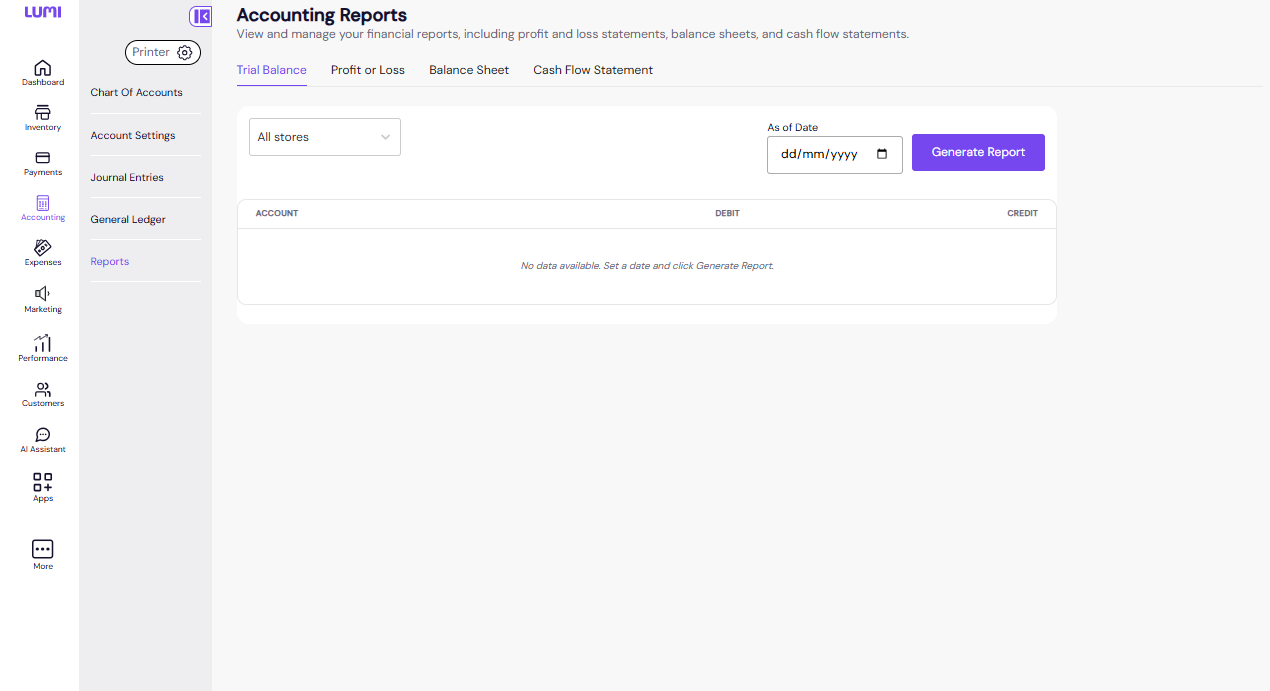
Trial Balance
A summary of every account’s debit and credit total as at a specific date. The Trial Balance confirms that the accounting system is in balance — total debits must equal total credits.
Select any ‘As at Date’ and click Generate Report
Accounts are grouped by category: Assets, Equity, Expenses, Liabilities, Revenue
Total row at the bottom confirms the balanced state (shown in purple when balanced)
Profit or Loss (P&L)
Shows net sales, cost of goods sold, gross profit, operating expenses, and net profit or loss over a selected period. The P&L is the primary tool for understanding whether the business is making or losing money.
Balance Sheet
A snapshot of the business’ financial position at a point in time. Shows total assets, total liabilities, and owner’s equity, confirming that Assets = Liabilities + Equity.
Cash Flow Statement
Tracks the movement of cash into and out of the business, broken down by operating, investing, and financing activities. Useful for understanding actual liquidity, separate from reported profit.
Ageing Reports (Payables & Receivables) (Coming During Pilot)
Ageing Reports are currently being set up and will be made available to pilot partners during the pilot period. Once live, they will show outstanding customer credit balances (Accounts Receivable) and amounts owed to suppliers (Accounts Payable), aged by overdue period.
Getting Started
The accounting module requires a short setup before it can produce accurate reports. The sequence below should be followed in order, ideally with the business’ accountant present or on a call.
Pre-flight check — Confirm the subscription plan includes accounting access.
Kick-off call (30 min) — Review the default Chart of Accounts and tax setup with the business owner and their accountant.
Chart of Accounts setup — The accountant customises the default CoA to match the business structure. Add, rename, or deactivate accounts as needed.
Account Settings configuration — Map each payment method and transaction type to the correct account (e.g. map Card Payments to the business’ Access Bank card account).
Opening Balance entry — Manually enter opening balances via a journal entry using the Opening Balance Equity account. This step is critical: incorrect opening balances will affect the accuracy of all subsequent reports. Require written accountant sign-off before proceeding.
Week 1 review — Check auto-posted journal entries to confirm correct account mapping.
Week 2 review — Run the Trial Balance and confirm debits equal credits.
Handover (Day 30) — Transition from Onboarding to Customer Success.
Known Limitations (v1.0)
Opening Balance entry is not available directly on the Chart of Account creation form — it must be done as a separate manual journal entry post-setup.
Multi-store payment account mapping is implemented via the store settings ledger account selector at checkout (Card and Transfer only); more granular per-store default mapping is on the roadmap.
Manual journaling (free-form) is restricted to Scale plan and above in the production release. Pilot accounts have full access.
Related Articles
What's New on Lumi Business: Release 10
Dear Business Partners, We’re excited to share the latest updates to Lumi Business,designed to help you run your business more securely, efficiently, and profitably. With these improvements, you can now take advantage of powerful new features, plus ...Lumi Business Product Update: Release 17
1. Activity Logs Overview The Activity Logs page provides visibility into all actions taken across business account. It helps business owners monitor staff activities, track operational changes, and maintain accountability within the system. To ...Lumi Business Product Update: Release 8
We are excited to introduce several new features for merchants in the Lumi ecosystem. These updates are designed to improve store management, storefront management, and overall customer experience. Below is a detailed breakdown of each feature and ...Lumi Business Product Update: Release 7
Whats New ?! Dear Business Partners, We're thrilled to introduce the latest enhancements to Lumi Business, designed to make your operations more secure, efficient, and profitable. 1. Inventory End of Day (EOD) Report Overview It is a powerful ...Lumi Business Product Update: Release 15
1. Automated “Rebates” Accounting For users with both the Accounting and Rebate features enabled, the system now automatically creates a dedicated accounting account named “Rebates.” This account is designed to help businesses track and manage rebate ...